14 Ocak 2017 Cumartesi

INSTALLING SQL 2016 FOR SCOM 2016 (STEP BY STEP)

Installing SQL 2016 for System Center Operations Manager (SCOM) 2016 – Step-by-Step

Installing SQL 2016 for System Center Operations Manager (SCOM) 2016 – Step-by-Step

The following is a guide on how to install SQL 2016 for your System Center Operations Manager (SCOM) 2016 environment. I will be installing SQL 2016 on a brand-new server with Windows Server 2016 installed.

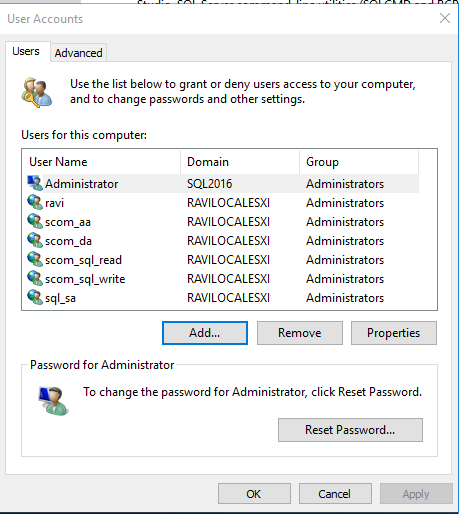
To begin, I am going to set the following accounts as a Local Administrator on the server. Also, I am going to be creating two SQL instances, one for the Operations database, and the other for the Data Warehouse. Since this is for my personal lab, I am not dedicated storage/drives for the databases.
Domain\AccountDescription
domain\SCOM_AASCOM Action Account
domain\SCOM_DASCOM Data Access/SDK Account
domain\SCOM_SQL_READSCOM SQL Reader
domain\SCOM_SQL_WRITESCOM SQL Writer
domain\SQL_SASQL Service Account
1
Next, let’s run the setup wizard as the SQL_SA account to make life easier down the road…
2
First thing I noticed, between SQL 2012/2014 and SQL 2016, a few changes/features have been removed/added. One that stands out is, the SQL Server Management Studio (SSMS)console is no longer here. Hmm.. I guess we can always connect to the databases from a console on another server/PC.
3
As mentioned, I am dedicated an instance for the Operations DB, and one for the Date Warehouse DB.
4
Setting the  SQL Server Agent to Automatic, and specifying the service accounts for the two services.
5
Keeping the database engine collation as default, “SQL_Latin1_General_CP1_CI_AS“.
6
Here, I am adding all the SCOM/SQL service accounts and SQL service accounts as SQL server administrators.
7
This is new for SQL 2016 — being able to create TempDB‘s. Since my VM has 8 vCPU’s, looks like SQL 2016 picked up on that, and has decided to create a one-to-one relationship. Great, let’s get started within the installation…
8
No errors. Keep in mind, we will need to repeat these steps to create the Data Warehouse instance.
15
16
Now we can go ahead with the SCOM 2016 installation! See HERE, for that post.
If you need to install the SQL Server Management Studio (SSMS), continue reading…
Within the SQL Server Installation Center, we have the SQL Server Management Tools as an option, let’s choose that.
9
That takes us here, “https://msdn.microsoft.com/en-us/library/mt238290.aspx“. I guess you can always download SSMS directly from the URL as well. Good to know!
Once downloaded, let’s run the installer…
12
13
14
Rather simple and straight-forward. Let’s launch that sucker!
17
I can see the two SQL instances I just created, SCOM_DW and SCOM_OPSMGR, perfect!
Ref.technet24

9 Ocak 2017 Pazartesi

Hp SiteScope: Dynamic Dates (Url, FileName,...)

Sometimes a monitor will need a dynamic date for it to work correctly.  If the date needs to be dynamic, SiteScope has Dynamic Date Variables.  You can use these in file names, text fields, URLs, POST data, almost everywhere.
SiteScope recognizes a specific set of variables to use in substitute for static date or time values:
VariableRange of Values
$hour$0 – 23
$minute$0 – 59
$month$1 – 12
$day$1 – 31
$year$1000 – 9999
$shortYear$00 – 99
$weekdayName$Sun – Sat
$fullWeekdayName$Sunday – Saturday
$0hour$00 – 23
$0minute$00 – 59
$0day$01 – 31 (two digit day format)
$0month$01 – 12 (two digit month format)
$monthName$Jan – Dec (three letter month format in English)
$fullMonthName$January – December
$ticks$milliseconds since midnight, January 1, 1970

Looking for a Dynamic Date in a Monitor’s Content Match
Say you have a web page that you want to check a timestamp on, to make sure it is being updated every day.  The content match search expression can be:
/Updated on $0month$\/$0day$\/$shortYear$/
The web page returned by the request could include the string:
Updated on 06/01/19
The content match would be successful if the webpage returned the current date when the monitor was run on June 1st, 2019. The match would fail if the content returned does not contain a string matching the current date.

Dates in the Future or the Past
If you want the time to be before or after the current time, you can add  $offsetMinutes=mmmm$ to the expression.  Simply specify the number of minutes into the future (positive number), or the number of minutes into the past (negative number).
For Example:
$offsetMinutes=20160$      = 20160 minutes, or 336 hours, or 14 days into the future.
$offsetMinutes=-20160$      = 14 days ago.
If the current day is June 1st, 2019, and the search expression is:
/$offsetMinutes=1440$Updated on $0month$\/$0day$\/$shortYear$/
the content string that would match would be one day in the future:
Updated on 06/02/19
You can use it in a URL monitor, File monitor, Log monitor, in almost any field that I’ve been able to find except the User-Generated SOAP XML field in the Web Service monitor.  For some reason, development has decided to not keep things consistent with the Web Service monitor.  That monitor sucks anyway.  Don’t use it.

Using Dynamic Dates in a Log Monitor
Here’s an example of me setting a log monitor to look for a filename that contains the date 24 hours ago.  I want this because I don’t care if the file exists or has log entries.  In this case,  I just want to make sure that yesterday’s file exists and contains entries.
s/\\hostname\/f$\/home\/ABC/$offsetMinutes=-1440$MY_APP_LOG_$0month$-$0day$-$shortYear$.log/

Using Dynamic Dates in a File Monitor
You can do the same with the file monitor.  I might have a monitor set to run at a specific time, after a backup job should have completed.  I can set the monitor to look for a file with today’s date, and if it doesn’t exist I could have it generate an alert:
s/\\hostname\/d$\/backups\/MY_DAILY_BACKUP.$year$$0month$$0day$/
Using Dynamic Dates in a URL Monitor’s URL As in the other examples, you just need to wrap the line in s/Your URL/, and replace your year, month, day, etc. with the correct date variable:
s/http://flightsearch.com/search.asp?SearchDate=$year$-$0month$-$0day$/

or
s/http://flightsearch.com/search.asp?$offsetMinutes=1440$SearchDate=$year$-$0month$-$0day$/
There doesn’t seem to be a way to include multiple offsetMinutes in a single line.  So, dynamic dates will have to be the same.  So, if you have a URL like this, that requires different dates in the future, I don’t know of a way to make them both dynamic and different.
s/http:\/\/flightsearch.com\/search.asp?$offsetMinutes=1440$Arrival=$year$-$0month$-$0day$&Departure=$year$-$0month$-$0day$/

becomes
 http://flightsearch.com/search.asp?Arrival=2015-07-01&Departure=2015-07-01

Using Dynamic Dates in a URL Monitor’s HTTP POST Data
In this example, I’ll show you how to use dynamic dates inside of the HTTP POST data field of a URL Monitor.  This is especially strange and not really documented.  This solution comes from a super helpful HP expert named Kenneth Gonzalez in the HP SiteScope forums.
To add dynamic dates, you’ll need to include the whole line within a Regex operation like this:
s|$offsetMinutes=20160$      "DepartDate": "$0month$/$0day$/$year$ "|
This will send the following line:
“DepartDate”: “07/04/2019”
NOTE: I’ve used pipes here to define the regex in this example, because the web service is using forward slashes to define the date.  I don’t recall if I had problems escaping the forward slashes, or if I was just too lazy to type the extra back slashes to escape them.  It should work either way.
Here’s how it looks in the HTTP Post data:
Custom-Header: Content-Type: application/json
Custom-Header: Method: POST
{
  "Trips": [
    {
      "Destination": "SAT",
      "Origin": "IAH",
s|$offsetMinutes=20160$      "DepartDate": "$0month$/$0day$/$year$ "|
    },
    {
      "Destination": "IAH",
      "Origin": "SAT",
s|$offsetMinutes=43200$      "DepartDate": "$0month$/$0day$/$year$ "|
    }
  ]
}


Ref. carlbrahms